
Setting up Device
Note: Read the Warnings and Cautions section before you set up.
1. Connect the smaller end of the charging cable (Micro USB) to the AeviceMD Docking Station. Connect the other end of the cable (Standard USB) to the AeviceMD Power Adapter.
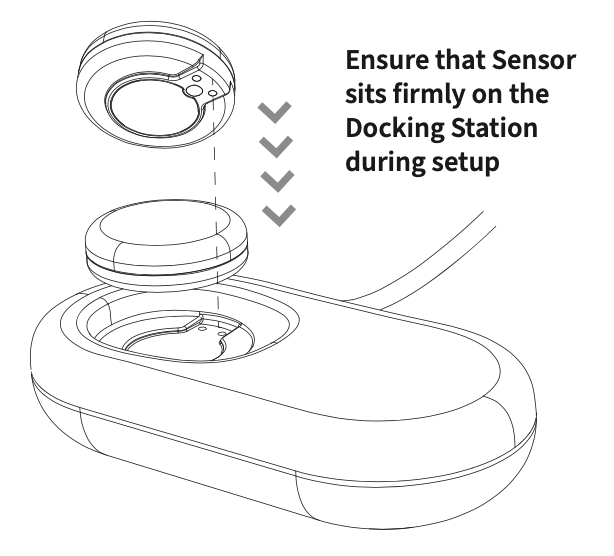
2. Sit the AeviceMD Sensor firmly on the AeviceMD Docking Station.

3. Ensure that your smartphone is connected to a stable 2.4GHz Wi-Fi network.
4. Launch the AeviceMD App on your smartphone.
5. Enable Bluetooth on your smartphone. Allow the AeviceMD App to access and use Bluetooth.
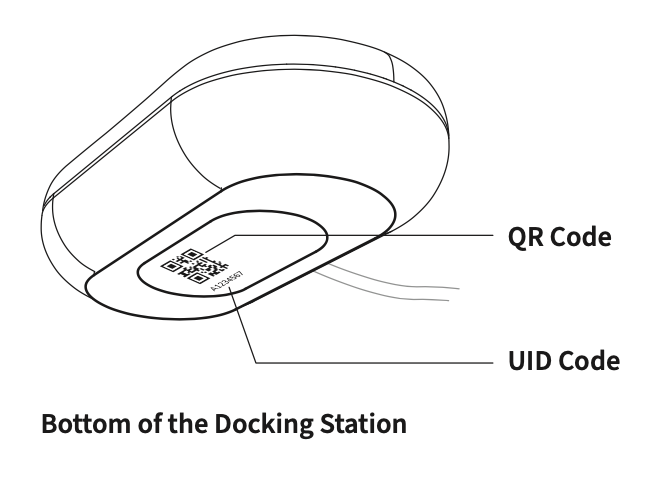
6. Using the AeviceMD App, scan the QR code at the bottom of the AeviceMD Docking Station to register your AeviceMD.
Note: If scanning the QR code does not work, you can manually enter your AeviceMD's unique UID code. It is found on the underside of the AeviceMD Sensor or at the bottom of the AeviceMD Docking Station.

7. Enter the password of your 2.4GHz Wi-Fi network to connect your AeviceMD to your Wi-Fi network. When it is successfully connected, the LED indicator on the AeviceMD Docking Station will change from purple to a green flashing light.
How do I connect my AeviceMD Device to a different Wi-Fi network?

1. Ensure that the smaller end of the charging cable (Micro USB) is connected to the AeviceMD Docking Station and that the other end of the cable (Standard USB) is connected to the AeviceMD Power Adapter. AeviceMD Sensor should be sitting firmly on the AeviceMD Docking Station.
2. Ensure that your smartphone is connected to a stable 2.4GHz Wi-Fi network.
3. Launch the AeviceMD App. Select Settings> Change Wi-Fi Network.
4. Ensure that Bluetooth is enabled on your smartphone. Allow the AeviceMD App to access and use Bluetooth.
5. Using the AeviceMD App, scan the QR code at the bottom of the AeviceMD Docking Station.
Note: If scanning the QR code does not work, you can manually enter your AeviceMD's unique UID code. It is found on the underside of the AeviceMD Sensor or at the bottom of the AeviceMD Docking Station.
6. Enter the password of your 2.4GHz Wi-Fi network to connect your AeviceMD to your Wi-Fi network. When it is successfully connected, the LED indicator on the AeviceMD Docking Station will change from purple to a green flashing light.