
Heart Rate and Respiratory Rate
How do I view my patients’ records?
On the My Patients

page, you will be able to see every patient prescribed with the AeviceMD that has been assigned to you. Only patients with a registered AeviceMD account will be shown on the page. Click on any patient row in the table to view the patient's records.
How do I read the vital signs graph?

You can filter out vital signs by unchecking the checkboxes, to focus on the vital signs you wish to analyze.
The Summary tab provides an overview of the patient's heart rate and respiratory rate over time.
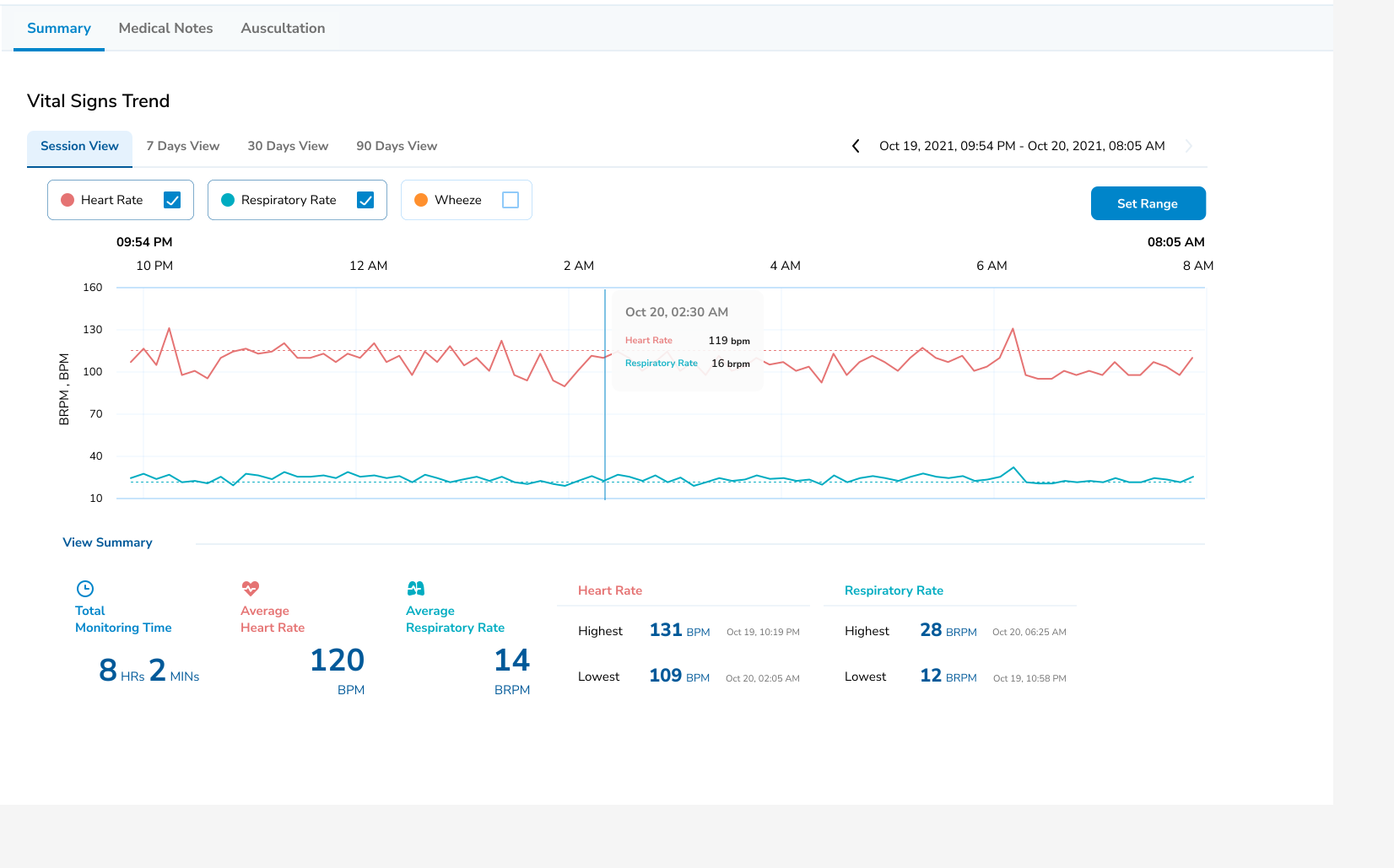
The chart on the page represents the overall trend for the patient’s heart rate and respiratory rate over a period of time. The Average, Highest, and Lowest heart rates and respiratory rates recorded during the particular period of time will be indicated at the bottom of the page.
To view the patient’s vital signs for a particular day on the chart, you may hover your mouse over the day. You may also toggle between other tabs (7 Days View, 30 Days View, and 90 Days View) to view the vital signs graph for those time periods.
Wheeze occurrences at a particular timing or day are indicated by the orange W markings

Note: Only automated wheeze recordings shared by the patient are reflected on the chart.
What parameters are recorded, and where can I view them?
The parameters recorded are:
- Heart Rate - the number of times the heart beats within a minute which is measured in BPM (beats per minute).
- Respiratory Rate - the number of breaths a person takes per minute which is measured in BRPM (breaths per minute).
- Wheeze - a continuous, coarse whistling sound produced in the respiratory airways during breathing.
Go to the Summary tab to view a patient's vital signs trend.
How do I set the vital signs range for my patient?
Vital signs range can be customized for each patient. Recorded readings will be highlighted on the chart when they fall outside of the set range.
1. Select a particular patient you want to set vital signs range for.
2. For the particular patient, go to Summary > Session View.
3. Click on

4. Enter the lower and upper limits for both Heart Rate Range and Respiratory Rate Range.
5. (Optional) Turn on the toggle for the recommended range to be reflected on your patient's app.
6. Save the newly set vital signs range.